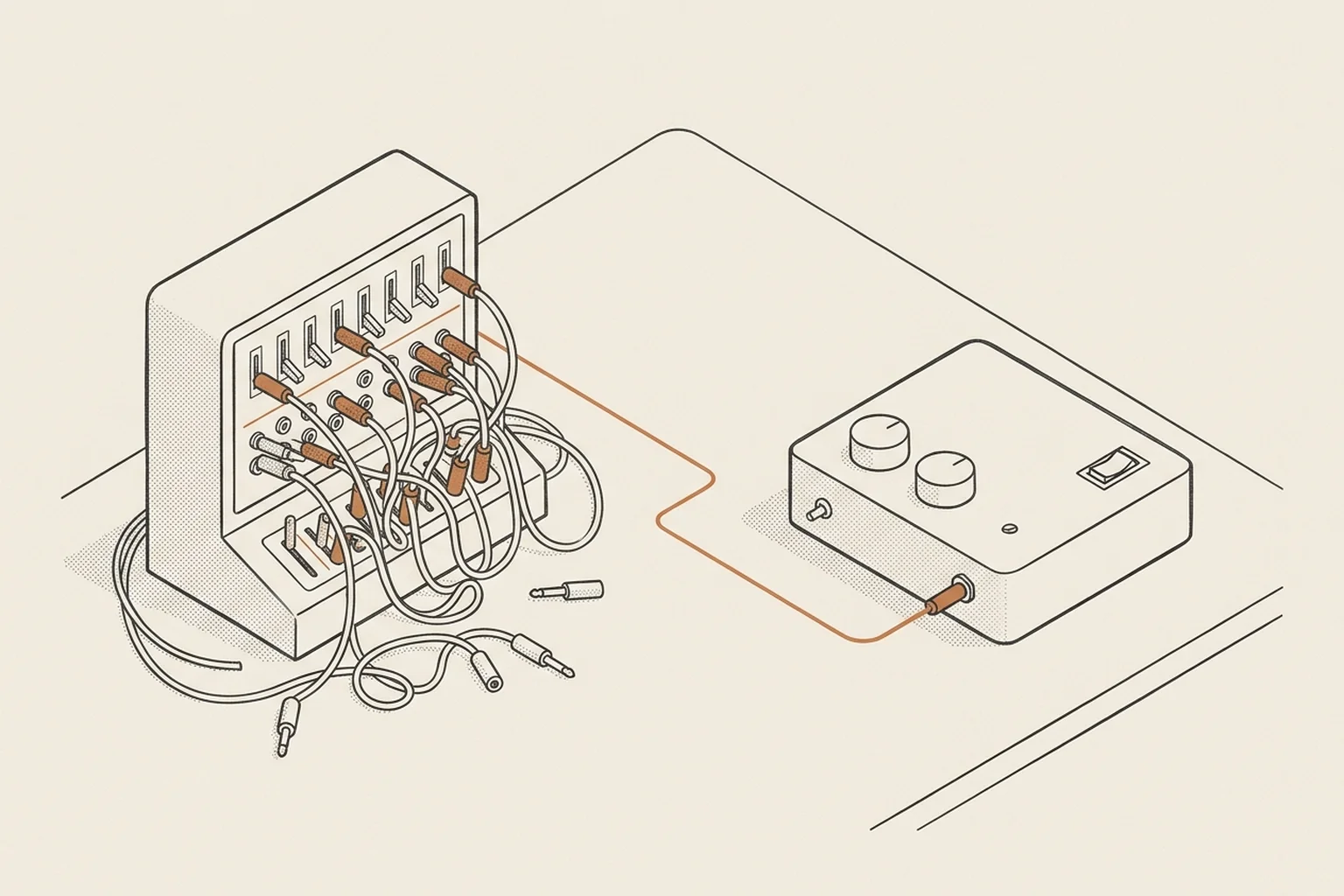
I used to dread the weekly notifications from my n8n instance.
You connect a Google Sheet, configure the node, and everything runs beautifully. Then, exactly seven days later, you get a slack alert: connection failed. You log in, click re-authenticate, and it works again—until the next week.
If this happens on your personal workflows, it’s just annoying. But if you build integrations for clients, it looks terrible. They get error emails, their dashboard breaks, and you end up doing free support work just to keep their Google OAuth token alive.
Here is why this happens, and how we solved it using Google Service Accounts.
The 7-Day OAuth Trap
Standard tutorials always show the fastest way to connect n8n to Google: clicking “OAuth2” and signing in through your browser.
What they don’t tell you is that by default, Google Cloud Console projects start in “Testing” mode. For security, Google automatically expires refresh tokens in testing mode after exactly 7 days.
You could publish the project to “In Production” to bypass this. But then, when your client logs in, Google shows a scary warning screen: “Google hasn’t verified this app. This site is unsafe.” To remove that warning, you have to submit your app for Google’s official verification, which requires privacy policies, website landing pages, and weeks of back-and-forth review. For a custom client automation, it’s completely impractical.
The Professional Way: Google Service Accounts
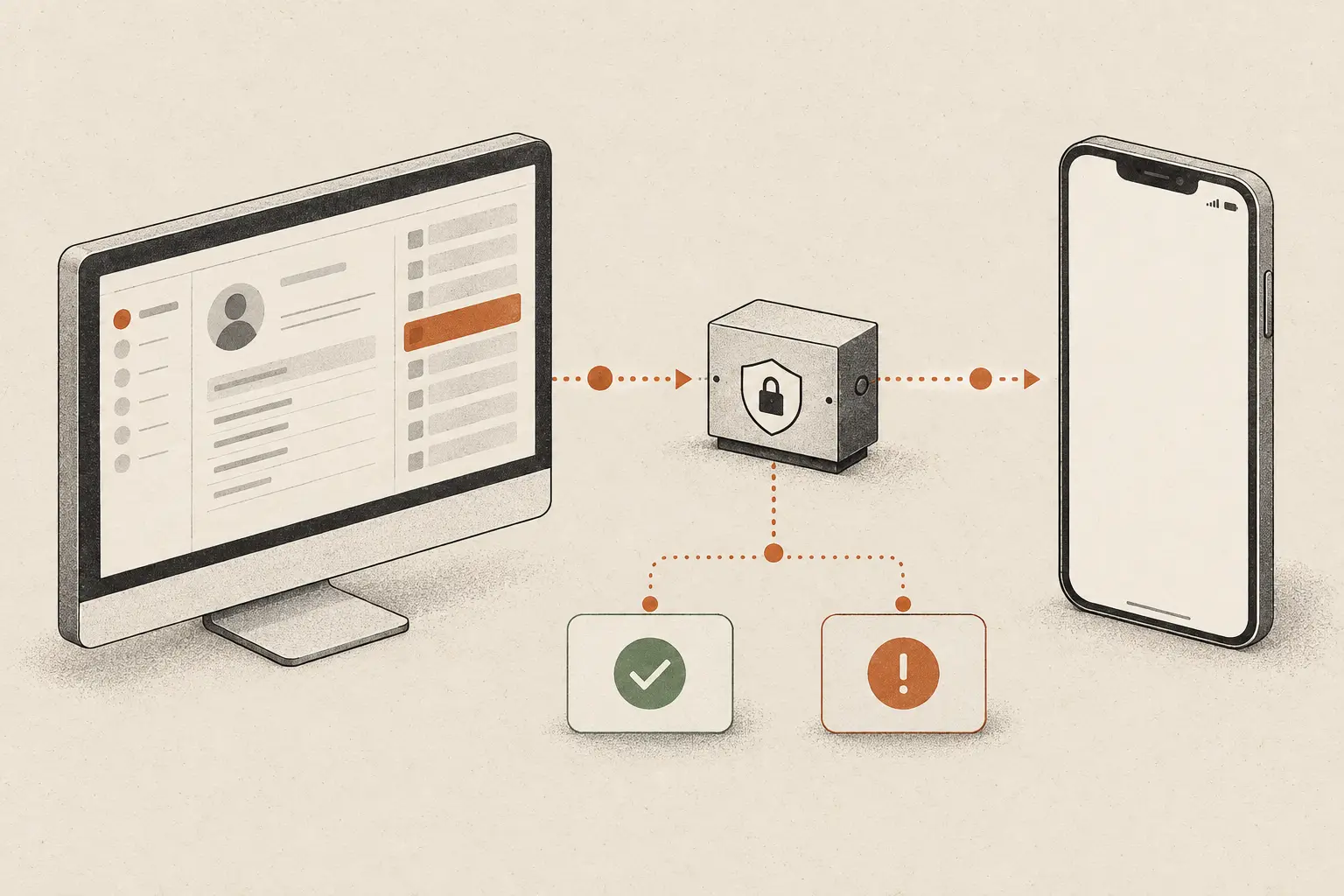
Instead of user-based OAuth, the industry standard for background processes is a Google Service Account. Think of it as a bot user that belongs to your Google Cloud project. It has its own email address, uses a secure JSON private key, and never expires.
Here is how we set it up:
- Create the account: In Google Cloud Console, go to IAM & Admin > Service Accounts and create a new one.
- Download the JSON key: Under the Keys tab, click Add Key > Create new key (JSON) and download the file.
- Enable the APIs: Search for Google Sheets API (or Google Drive/Calendar) in the console and click Enable.
- Configure n8n: In n8n, create new credentials, select Google Service Account, and copy the credential fields from the downloaded JSON file.
- Share the file: Copy the Service Account’s email address and share the Google Sheet or Drive folder with it, giving it Editor access.
Why this is a win for clients
For the client, this workflow is incredibly clean. You don’t need to ask for their Google password, and you don’t need to do a screenshare call to log them in.
Instead, you simply send them an email address (e.g., [email protected]) and say: “Simply share your Google Sheet with this email like you would with a colleague.”
It looks highly professional, takes 5 minutes, and stays connected forever.
ilf.studio — AI-native web studio, Gdansk, Poland.